
Features
Three everyday jobs, one menu-bar app.
Send the copy you just made to your other Mac, drop a Finder file into the folder you want, and search what you copied earlier.
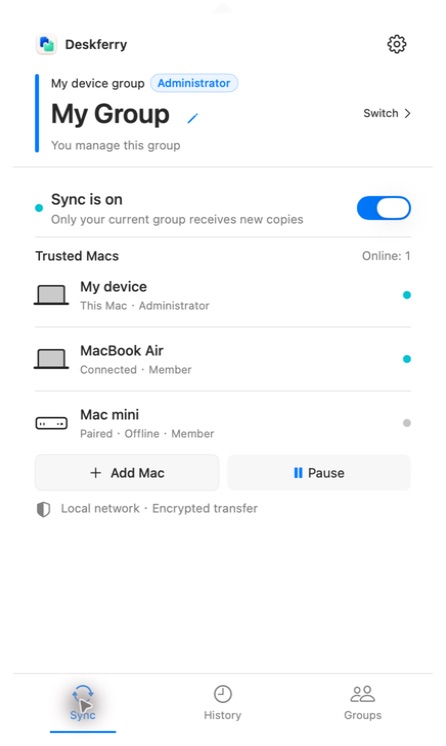
Move a copy between Macs without leaving your work
You copy a passage on the laptop and need it in a document on the Mac at your desk. With both machines in the same Deskferry group, on a Wi-Fi or Ethernet network they can both reach, the copy is already waiting and your next keystroke is Command-V. Only the group currently selected receives it, so switching groups changes who your next copy goes to. Start with clipboard sync.
Land a file in the right Finder folder
Select a file in Finder on the first Mac and press Command-C. Once the second Mac has received it, open the folder you actually want it in and press Command-V. What you get there is an independent copy — not a shared folder that keeps syncing afterwards. Files and videos need a group administrator on Pro or Max, and folders need Max. See file transfer.
Get back something you copied earlier
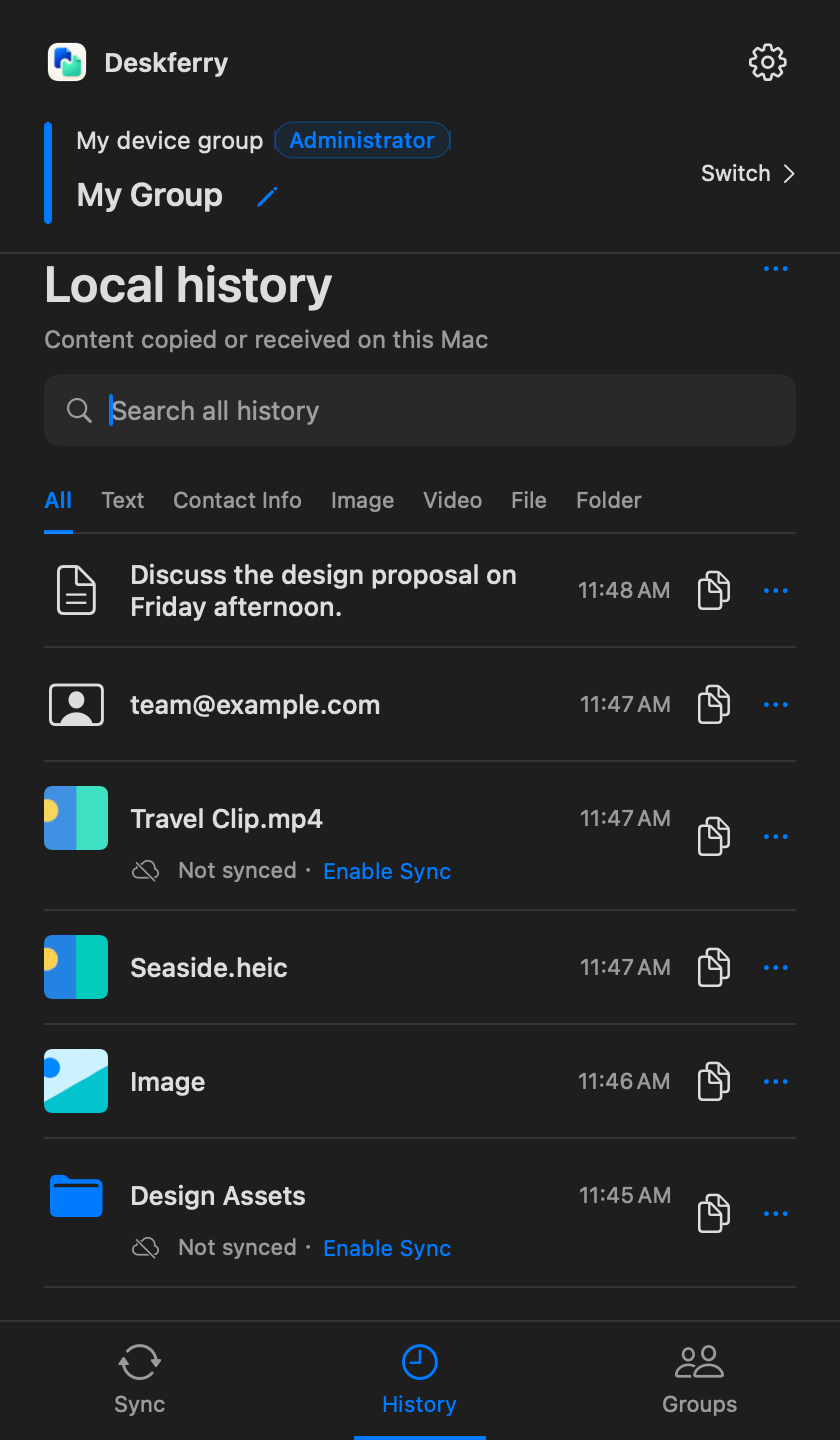
History is kept on each Mac separately, with no pairing involved. Search runs across every retained record on that Mac on every plan, covering saved text, contact fields and file or folder names; you can also browse by type and scan thumbnails. How much of an older record you can open and copy depends on your own plan, not on the group you belong to. Video entries show a still cover, not a player. Explore local history.
Where Deskferry stops
It needs macOS 14 or later, and the Macs involved have to reach each other on the same network. There is no Windows or iPhone client. It does not keep a cloud copy of your history, migrate a whole Mac, or hold two folders in continuous sync. The website is published in 11 languages and the app in 10, which does not currently include Arabic.
Search everything; open in full what your plan allows
Browsing and searching reach every retained record on that Mac, whatever plan you are on. What Free limits is full access: you can open and copy the global latest 20 records across all types. That ranking is worked out before your search terms and type filters are applied, and placeholders for sensitive or unsaved items take up slots in it — so a search can turn up an entry that sits outside the window. Pro and Max remove the count limit, while retention, capacity and cleanup still apply.
Beyond that window, a text record shows a fixed summary and an image shows a restricted preview. The Copy button stays exactly where it was, but it opens an upgrade prompt instead of writing to the clipboard. Moving back down to Free does not delete anything you already recorded. And a group administrator's plan, which pays for sync rights, does not unlock anyone's personal history access.
FAQ
Questions, answered
Does recording need a paid plan?
No. Deskferry records the supported types into local history on every plan. Group transfer rights and personal history access are two separate things: a paid administrator does not widen your own full-access window, and being on Free does not stop anything from being recorded.
Guides
Your next useful read
Mac clipboard sync for the two Macs you switch between
The address is on the laptop. The field waiting for it is open on the desktop. That gap is the whole problem.
Read the guideTransfer filesTransfer files between Macs without leaving Finder
Copy at the source. Paste at the destination. Open the file and get back to work.
Read the guideLocal clipboard historyClipboard history on this Mac: find an earlier copy
Copying the next thing should not cost you the last one.
Read the guideDeskferry
Keep the next step simple.
Continue on another Mac, hand off a file, or find an earlier copy.
macOS 14+ · One Mac for history · Reachable LAN for sync
