
Deskferry official
Transfer files between Macs without leaving Finder
Copy at the source. Paste at the destination. Open the file and get back to work.
Choose something to send.
Interactive illustration · not an app screenshot
You finished a deck on the MacBook and you want to keep editing it on the desktop Mac. Or a download belongs in a project folder that lives on the other machine. Nobody is migrating their life here. You need the next few pieces of work to cross the desk.
Deskferry keeps that handoff inside Finder: select the file on the source Mac and press Command-C; open the destination folder on the other Mac and press Command-V. The app carries the content across your trusted local-network group, and the folder it lands in is the one you chose.
Keep the handoff where you already work
Say you export Proposal.pdf on the laptop. With the group connected, copy that PDF in Finder, switch to the project folder already open on the desktop Mac, and paste. Open it in whatever you normally use. Carry on reviewing.
The point is not learning one more Send button. It is skipping the email you write to yourself, and then the search half an hour later that has to find the attachment again. The next sentence, screenshot or link goes through the same app, on clipboard sync.
What lands at the destination is an independent copy. The original stays where it was, and edits made afterwards on either side are never merged — nothing is watching the file. When two Macs need ongoing access to one folder, that is a different tool: read macOS File Sharing.
Get ready to transfer files between Macs
Both Macs need macOS 14 or later, Deskferry running, and a Wi-Fi or Ethernet network where they can genuinely reach each other. The administrator starts with Add Mac. The joining Mac chooses Join a Group, picks the nearby invitation and types the 6-digit code, which lasts 120 seconds and allows three attempts. Once the administrator approves the request, select the same group at both ends and turn sync on. First time through, walk first-time pairing before you try a handoff.
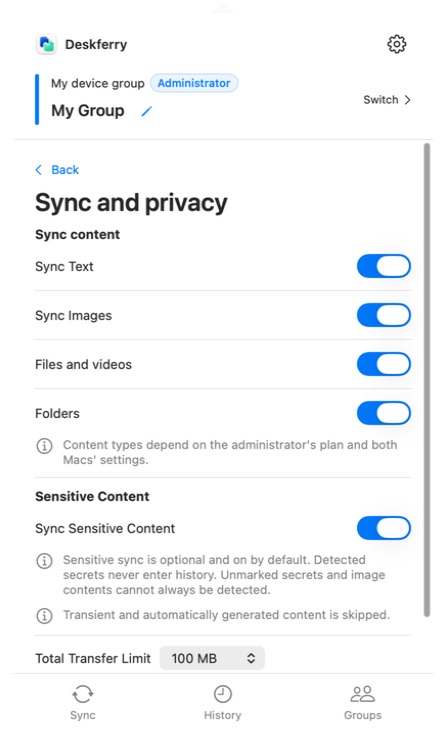
Files and videos draw on the group administrator's Pro or Max entitlement, and folders require Max. Other members do not have to buy a matching plan to use file sync inside that group. Both Macs still have to allow the content type in Sync and privacy.
The same settings page carries a resource-protection limit on the combined expanded size of one selection. It arrives set to 100 MB, and the choices are 10, 50, 100, 500 MB or unlimited. Raise it when your usual files are bigger and the disk space is there. That one is a setting you change, not an upgrade you buy.
Run the first handoff with a single file
Start with a small PDF. It crosses quickly, and it is obvious whether it really arrived.
- In Finder on the source Mac, select a file that is fully downloaded to that machine and press
Command-C. Select the file itself — not its name sitting in an open rename field. - Open the
Syncpage in Deskferry. The source showsSendingand the other Mac showsReceiving, both with byte progress, and the receiver may add a verification stage. Let reception, verification and application all finish before you paste, and do not copy something else in the meantime. One warning: progress vanishing is not proof on its own, because cancellation and failure end it too. - Once the received file has been applied, open a writable destination folder in Finder on the other Mac and press
Command-V. If nothing appears, work through the checks below. Do not assume the transfer went through. - Open the pasted file and carry on reading, editing or filing it.
Once the PDF test works, move on to the selection you actually need. Keep the destination project folder open, wait for reception and application, then paste and open the files at the other end. If you copy a folder on a Max group, look inside a nested file and an empty subfolder as well. Keep the source until you have checked the destination — anything you edit from then on belongs to that separate copy.
When pasting produces nothing
Start at the source. Open the file locally, download anything that is still a cloud placeholder, and when Deskferry asks for file access, authorise the selected item through that prompt. This is the case that fools people: a copy can be recorded in History on one Mac even though it never reached the other.
If a plan blocks the transfer, the reason sits on the affected History record and nowhere else. An administrator sees Not synced · Enable Sync. A member is told the administrator needs Pro or Max for files and videos, and that folders still need Max. Sort out the entitlement, or ask the administrator to, before you tear the group down and rebuild it. Either way, confirm delivery by pasting into the destination folder and opening the actual file.
Then look at the receiving end. You want a Finder folder you can write to, and enough free space on that disk. If text syncs but files do not, check the content switch and this selection's total size before you start changing network settings.
If even a freshly copied sentence will not cross, the connection itself is the problem, and LAN connection troubleshooting is where to start. Keep the original until the copy has arrived and you have opened it.
Make the next handoff routine
Deskferry is built for repeated exchanges of documents, assets and everyday files between the Macs you use all week. It is a free download on the Mac App Store, and the download page has what to check before you install. Once both Macs are in the group, try it on the next PDF you need on the other machine.
Official references
Apple feature references checked 16 September 2026. Deskferry is independent of Apple.
FAQ
Questions, answered
Universal Clipboard already copies files. Why add Deskferry?
It may well already cover what you do — Universal Clipboard copies whole files between compatible Macs, and if that works for you, use it. Deskferry is worth a look when you want a named group of trusted Macs, control over which content types are allowed to travel, and a local history you can search back through, all from one menu-bar app.
Why did only the filename paste?
Because a rename field, or a filename inside a text document, copies the name as text and not the file. In Finder, leave rename mode, click the file itself, press Command-C, then paste into the destination Finder folder.
Can I send a file that only exists in the cloud?
Make it available locally first, and open it to be sure. If Deskferry asks for access, authorise the selected item through the app prompt and copy it again.
When is it actually safe to paste on the receiving Mac?
After the content has been received, verified if that step appears, and applied. Watch Receiving and its byte progress on the Sync page — but treat the paste as the real test. Open the file in the destination folder rather than trusting progress that simply disappeared.
Do we both need Pro to send files in one group?
No. The group administrator's Pro or Max plan supplies file sync for that group, and members need no matching purchase for it. Each person's own plan still governs how far back they can open their personal history.
Does a folder keep its subfolders and empty folders?
Folder sync runs on an administrator's Max plan and carries the directory structure, empty folders and subfolders included. Authorise the selection when prompted, then check the copied structure in the destination Finder.
Do later edits keep syncing after I paste a file?
No. What you pasted is an independent copy and nothing is tracking it. Send an updated version explicitly, or use shared-folder access when the goal is ongoing access to one file.
Guides
Your next useful read
Mac clipboard sync for the two Macs you switch between
The address is on the laptop. The field waiting for it is open on the desktop. That gap is the whole problem.
Read the guideLocal clipboard historyClipboard history on this Mac: find an earlier copy
Copying the next thing should not cost you the last one.
Read the guideTransfer filesMac File Sharing: give another Mac access to one folder
Share a directory when both Macs need the same live files. Send a copy when you just need the file.
Read the guideTransfer filesHow to AirDrop from Mac to Mac, step by step
It starts on the receiving Mac, not the one holding the file. That trips up most people.
Read the guideLocal clipboard historyClipboard history for images and files: pull an asset back out
Getting the right picture back into a project, not just an earlier sentence.
Read the guideDeskferry
Keep the next step simple.
Continue on another Mac, hand off a file, or find an earlier copy.
macOS 14+ · One Mac for history · Reachable LAN for sync
