
Deskferry official
Clipboard history for images and files: pull an asset back out
Getting the right picture back into a project, not just an earlier sentence.
You copied a reference photo, then a PDF, and now you want one of them again. Deskferry's local history narrows the list by content type, so you can recognise a picture from its thumbnail or find a file by name, then preview it or copy it back — as long as this Mac recorded it and still keeps it.
Clipboard history for images and files starts from what the content is
History sorts records into Text, Contact Info, Image, Video, File and Folder. The category follows the content, which is not always where you would look first: a picture dragged out of Finder can land under Image, while a mixed selection turns up as File. If a tab does not show what you are after, go back to All and scroll by time.
Two labels worth reading carefully. Contact Info is a judgement about format, not a check on validity — it means the data had the shape of a contact card and nothing more. And when a record matches a format recognised as a definite secret, the whole entry becomes a sensitive placeholder rather than readable content.
Preview first, then copy it back
Three steps, and the middle one is the one people skip.
- Open History in Deskferry. Type part of a file or folder name into Search all history, or stay in All and use the type tabs to spot an image by its thumbnail.
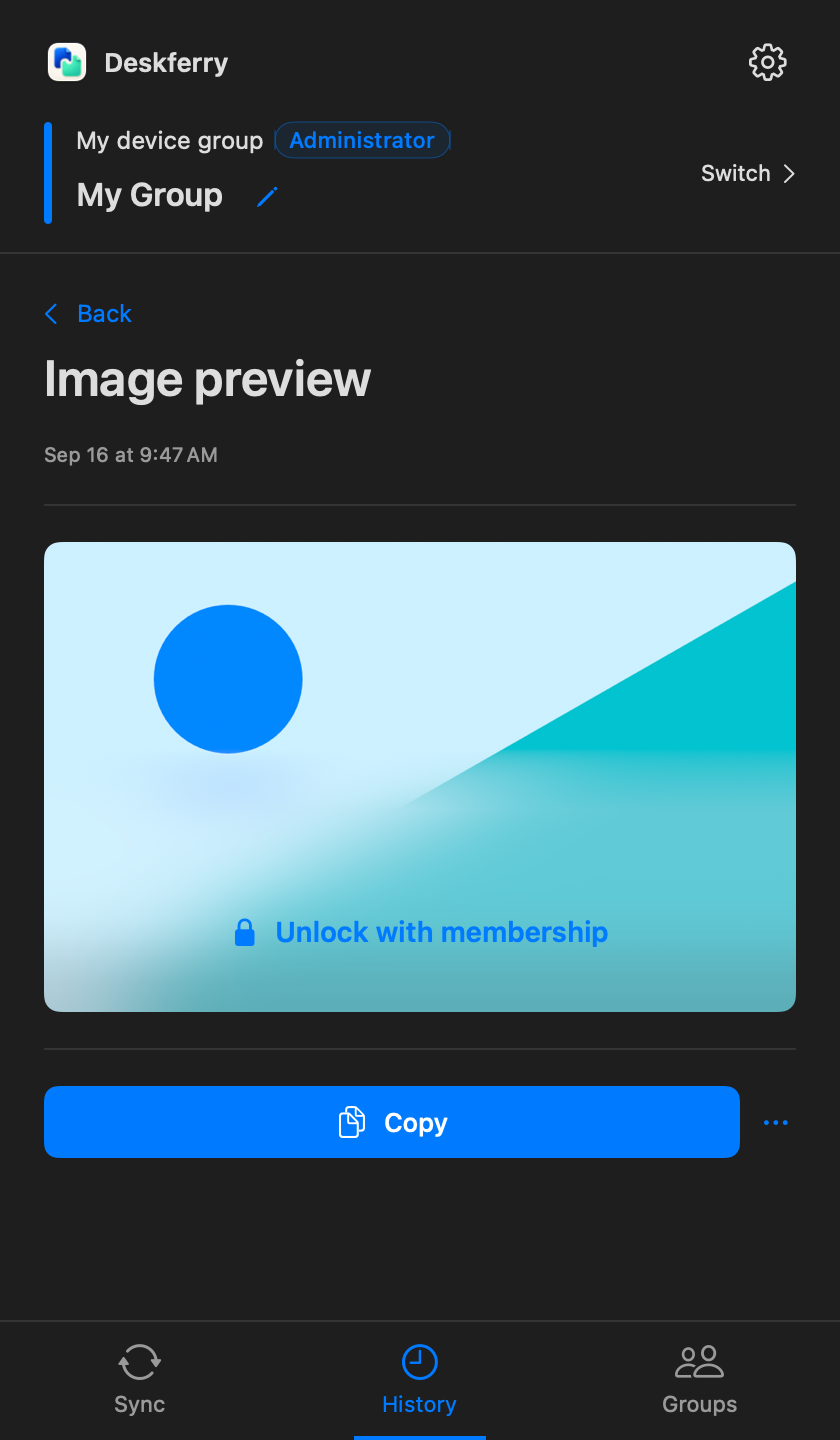
- Open the record and read the details. An older image can be easy to find and still show only a restricted preview.
- Where full access applies, choose Copy, then paste: an image into an app that accepts pictures, a file into a Finder folder you can write to. On a restricted older record the Copy button is still there, but it raises an upgrade prompt and leaves the clipboard untouched.
A realistic run-through with a project asset. Search part of Cover.heic, open the Image results, and compare the thumbnail against the file you meant to use. With full access, choose Copy and paste it into a writable Finder folder. If what you copied was picture content rather than a file, paste into an image-capable document instead. Then open the result and check it — before you delete the source, and before you clear that part of history.
Each preview answers a different question
An image preview exists to identify the asset. A video shows a still frame so you can recognise it. A file or folder is identified by its name and type. Deskferry does not read the inside of every attachment, so a record that looks right is not the same as a file you have checked. Open anything you intend to keep or pass on.
Retained copies of files can be used again, but time limits, capacity, disk-space protection and manual cleanup all reach them. A filename sitting in a list is not storage. Keep the real project assets somewhere you control.
Finding an old asset does not change what you can do with it
Browsing and searching retained summaries and thumbnails works on every plan. Free fully opens and copies the global latest 20 records across all types, and that ranking is worked out before any search or type filter — so choosing the Image tab or matching a filename never moves an older asset into the free window. Pro and Max remove the limit for assets that are still retained, while retention and capacity keep deciding what is there to find at all.
None of this changes what crosses between Macs. A picture copied as a file in Finder is still a file transfer: group files and videos need the administrator on Pro or Max, and folders need Max. Reusing something from local history needs no second Mac at all.
Put the chosen asset back to work
Recopying an old entry produces a new copy, and the current group's sync rules apply to it from that moment — so pause sync if you want it to stay on this Mac. When the destination is a project folder on another Mac, carry on with the Finder handoff steps.
FAQ
Questions, answered
Why does a picture from Finder count as a file when it syncs?
Because history labels it by content, so it can sit under Image while the handoff still moves a file. Picture content copied directly is fine on any group plan, whereas an image file from Finder draws on the administrator's Pro or Max file rights.
Can search read the text inside a PDF or a screenshot?
Do not count on it. Search covers saved text, contact fields, file names and folder names, so use a name you remember for file records and thumbnails for pictures. It does not index what is inside every attachment.
Why does an old record have a Copy button that pastes nothing?
Restricted records keep the button so the action stays visible, but pressing it opens an upgrade prompt instead of writing to the clipboard. A personal Pro or Max plan unlocks full access to older retained entries.
Do I need Max to open an older folder record on this Mac?
No. Pro is enough for personal history access. Max applies when an administrator wants folders to sync to other Macs, which is a separate right for a separate action.
Can upgrading restore a file that cleanup already removed?
No. Full access applies to records and content that are still retained. If the payload has gone, look for the original file or another copy you saved elsewhere.
Guides
Your next useful read
Clipboard history on this Mac: find an earlier copy
Copying the next thing should not cost you the last one.
Read the guideCopy between MacsSync images between Macs: picture content or the original file
Does the picture belong inside a document, or does the file belong in a folder? Answer that first.
Read the guideTransfer filesTransfer files between Macs without leaving Finder
Copy at the source. Paste at the destination. Open the file and get back to work.
Read the guideDeskferry
Keep the next step simple.
Continue on another Mac, hand off a file, or find an earlier copy.
macOS 14+ · One Mac for history · Reachable LAN for sync
