
Deskferry official
Clipboard history on this Mac: find an earlier copy
Copying the next thing should not cost you the last one.
You are halfway through a report. You copy a reference, then a screenshot, then a price — and now you want that first reference back. Deskferry keeps the copies it recorded in a menu-bar list. Look at the entry, copy it a second time, get back to the sentence you were writing.
History runs on one Mac, by itself. No second machine to set up, no group to join, and no way to browse another Mac's list from here, because every Mac keeps its own and they never pool. The records are encrypted on the Mac that made them, and the local recording settings decide what enters the list — whether you copied it yourself or received it from someone else.
Search clipboard history on this Mac by a word, a name or the picture
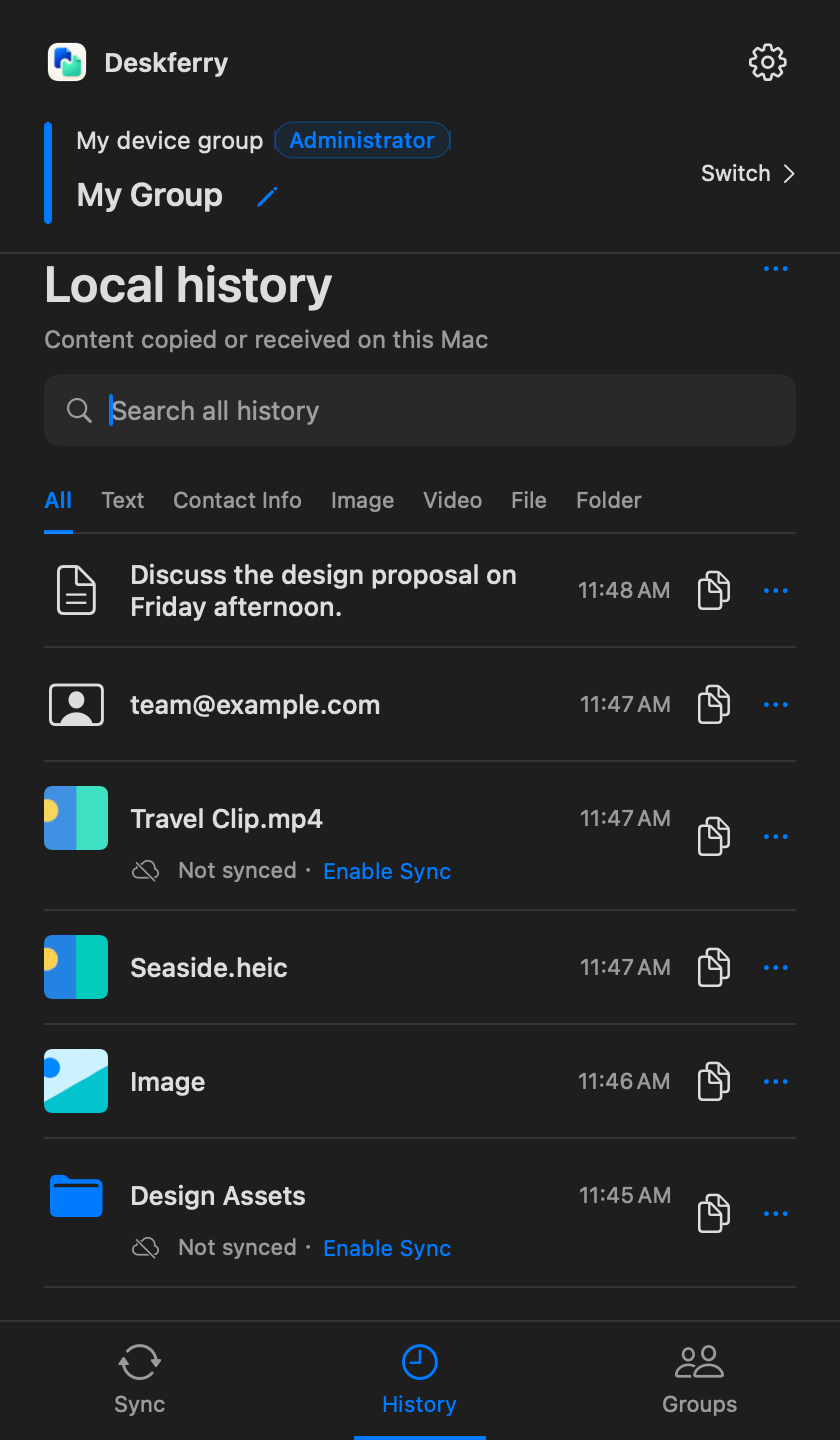
Open History from the menu bar and type whatever you remember into Search all history. A phrase from the text, part of a contact detail, a file name, a folder name. Search reads every record this Mac still holds, on every plan. If you would rather browse, walk back through the list by time, or narrow it with the Text, Contact Info, Image, Video, File and Folder tabs.
Summaries and thumbnails are there so you can recognise the right entry before you open it. Open the record, check the content, and where full access applies, choose Copy and paste into your document. One thing to know about that second copy: it behaves like any fresh one. The current group's sync rules apply to it from that moment, so pause sync first if you want it to stay on this Mac.
Do this once before you need it under pressure. Copy a sentence from a meeting note, then a link, then a picture. Search a distinctive word to bring the sentence back, clear the field, switch to Image and find the picture by its thumbnail. Copy whichever one you would genuinely reuse and paste it somewhere real. After that you have a route back to earlier work, not a list you scroll from the top hoping.
Free Mac clipboard history: what Free opens, and what a paid plan adds
Browsing and searching cover all retained local records on every plan, Free included. What changes is reuse. Free gives full view and Copy on the global latest 20 records; Pro and Max remove that count altogether. Time limits, capacity, free disk space and cleanup still decide which records exist in the first place.
Those 20 are ranked globally across every type, and the ranking is worked out before any search or type filter runs. That has a consequence people trip over: a search can put an older picture at the top of your results, and that picture still opens as a restricted preview. Its Copy button stays visible. Pressing it raises an upgrade prompt and writes nothing to the clipboard. Older text behaves the same way, showing a fixed summary until full access is unlocked, and placeholders for sensitive or unsaved items hold rank positions of their own.
Search stays on this Mac, and it cannot conjure anything back. A deleted record, something that was never recorded, the body behind a sensitive placeholder — all out of reach, permanently. Group membership works the same way: an administrator's sync plan pays for group transfers, not for your personal full history access. See plans and availability if you reach for older retained entries often.
Keep as much as your work actually needs
For addresses and snippets you only look back at for a day or two, a short retention period is plenty. If you copy images and files all day, watch capacity too — those entries take far more room than a line of text. Entries drop out when the time limit, the capacity limit or disk protection calls for it. Which is the reason history should never be the only copy of something you cannot replace.
History settings is where the recording switch, the retention period and the capacity limit live. The retention guide sets out which of those controls changes what gets recorded next, and which one governs what is already stored. They are not the same control, and mixing them up is how people lose things.
A history you can leave open
When an entry matches a format recognised as a definite secret, the whole record becomes a sensitive placeholder instead of readable content you can copy back. That detection works from explicit formats, so treat it as a guardrail and not a guarantee. It will not catch every password, and it does not read the inside of every attachment. A Contact Info label says only that the data had the shape of a contact — not that the card or the account is real.
To remove content that is already stored, use history cleanup. Turning recording off is a different lever entirely: it stops new items being added and leaves everything earlier exactly where it was.
FAQ
Questions, answered
Do all my Macs share one history list?
No. Each Mac builds and keeps its own. Sync passes an allowed new copy across, and whether the receiving Mac writes that item into its own history is decided by the recording settings on that Mac, not by the sender.
Will installing Deskferry recover copies I made yesterday?
No. It can only show what it recorded and still retains, so anything copied before recording began has to come from the original app. Leave recording on and tomorrow's copies will be there to find.
Why is the top search result still restricted on Free?
Because result order and access age are two different things. Free fully opens and copies the global latest 20 across all types, and anything older shows a summary or a limited preview wherever it happens to land in your results. A personal Pro or Max plan is what unlocks the older retained entries.
Can I stop recording new items without losing what I have?
Yes. Switch off Record Clipboard History in History settings and existing entries stay put. Removing them is a separate, deliberate action using Delete or Clear All. Cleanup instructions.
Can search reveal the text behind a sensitive placeholder?
No. A placeholder is not a hidden body waiting for the right plan — there is nothing stored to reveal. Search also cannot bring back entries that were never recorded, or ones that cleanup has already removed.
Is there a keyboard shortcut for clipboard history on Mac?
macOS has no system-wide shortcut that opens a list of your earlier copies. On macOS 26 Tahoe you open Spotlight and switch to its clipboard view; on macOS 14 and 15 there is nothing built in to open. Deskferry keeps its history behind its menu bar icon, and search works on every plan.
Can I read clipboard history from Terminal?
pbpaste prints whatever is on the clipboard at that moment and nothing else, because macOS itself keeps no earlier copies for it to read. If the copy you want has already been replaced and nothing was recording at the time, Terminal cannot bring it back either.
Is there a Mac equivalent of Windows clipboard history?
Windows opens a list of recent copies from the keyboard. macOS had no equivalent until macOS 26 Tahoe added a clipboard view inside Spotlight, so on macOS 14 and 15 you need an app that records. Deskferry keeps that record on each Mac and sends it to no one.
Can I download Deskferry and try this today?
Yes. It is on the Mac App Store as a free download for macOS 14 or later, so local history is something you can set up this afternoon.
Guides
Your next useful read
Mac clipboard sync for the two Macs you switch between
The address is on the laptop. The field waiting for it is open on the desktop. That gap is the whole problem.
Read the guideTransfer filesTransfer files between Macs without leaving Finder
Copy at the source. Paste at the destination. Open the file and get back to work.
Read the guideLocal clipboard historyHow to see clipboard history on Mac and copy an item again
Whether yesterday's copy still exists was decided yesterday, not now.
Read the guideLocal clipboard historyClipboard history retention: decide what this Mac keeps
Storage rules decide what survives. Access rules decide what you can open. Two different things.
Read the guideLocal clipboard historyClear clipboard history on Mac, and the copy that is on it now
Clearing one list never clears the other, and neither reaches what you already pasted.
Read the guideLocal clipboard historyClipboard history vs clipboard sync: which one you need
One is a question about place. The other is about time.
Read the guideCopy between MacsA ClipBook alternative only matters once the copy has to cross
ClipBook keeps a deep, searchable history on the Mac you copied on, and says plainly that it uses no cloud. If both your Macs need the same copy, that is the line you hit.
Read the guideLocal clipboard historyA clipboard manager for Mac that also reaches the Mac beside it
macOS holds one copy at a time. A clipboard manager keeps the rest; Deskferry keeps them on each Mac and moves the current one across.
Read the guideDeskferry
Keep the next step simple.
Continue on another Mac, hand off a file, or find an earlier copy.
macOS 14+ · One Mac for history · Reachable LAN for sync
