
Deskferry editorial guide
Clear clipboard history on Mac, and the copy that is on it now
Clearing one list never clears the other, and neither reaches what you already pasted.
"Clear the clipboard" covers two different jobs. Sometimes you want the next Paste to stop producing an account number. Sometimes you want a stored list of earlier copies gone. Separate actions, separate scope.
So start by working out which list you are dealing with: clipboard history in Spotlight on macOS Tahoe 26 or later, history kept by an app such as Deskferry, or both if you run both.
Clear the clipboard on a Mac: replace what is on it right now
The system clipboard holds one item, so there is nothing to delete here. You overwrite it. Select a harmless word somewhere and copy it, then paste into an empty document to confirm the sensitive item is no longer what comes out.
That is the whole operation, and also the limit of it. Stored history entries are untouched, and anything you already pasted into a message, a document or another device stays exactly where you put it.
Clear Spotlight clipboard history on macOS Tahoe 26 or later
Press Command-Space, then open Clipboard with the button beside the search field or with Command-4. Use the More button next to the search field and choose Clear History. That is Apple's own cleanup route on the versions that include the feature. On Sonoma 14 or Sequoia 15 there is no such list, so there is nothing to clear there.
Clearing here does nothing to a third-party list. If Deskferry is also recording, its entries sit in their own store and have to be cleared in the app. Two tools means two cleanups — and the same is true of any other history app you have installed.
Clear clipboard history on Mac: one entry, or the whole local record
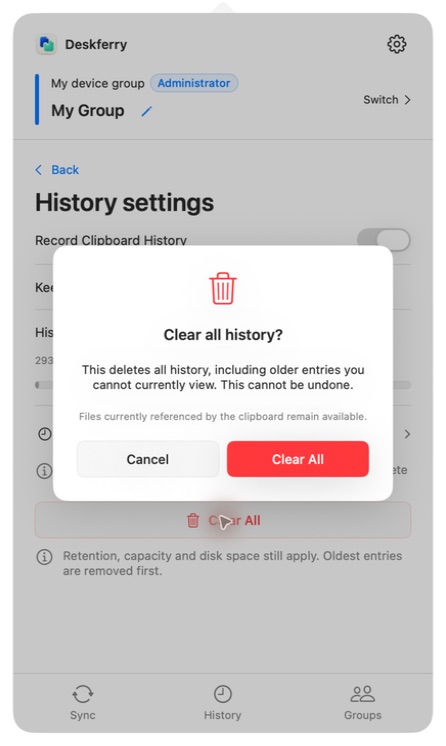
For a single item, open History, find the entry and choose Delete from its action menu. To empty the list on that Mac, open History settings, choose Clear All and confirm.
Clear All is broader than what you can see. It removes records outside the current search and type filter, including older ones you could only view as a summary or a restricted preview, and it cannot be undone — so save anything you still need first. It is also local: it clears this Mac's history, not another Mac's. And a file that the current clipboard still points at may remain pasteable afterwards, which is why the step above matters too.
Stop new entries, then check your work
Turn off Record Clipboard History in Deskferry's History settings if you want the list to stop growing. That switch concerns the future only and leaves existing entries in place, which is why clearing and disabling are two steps and not one.
If you would rather keep recording but hold less, adjust retention time and capacity instead. The default allowance is 10 GB with no expiry set, so the list will keep accumulating until you change that. Material you actually want to keep belongs in a document or a note, not in a list designed to be temporary.
A sensible order for a clean stop: save anything important elsewhere, clear the list you meant to clear, switch recording off if you want no new entries, then copy something harmless to replace the current clipboard. Reopen the history and paste once into a blank document to see that both look the way you expect. Be precise about what that proves, though. It shows these stored entries are gone and the current paste is harmless. It says nothing about copies sitting in sent mail, in saved files, in a backup or on another Mac, and it is not a guarantee about what remains on the disk itself.
Official references
Apple feature references checked 16 September 2026. Deskferry is independent of Apple.
FAQ
Questions, answered
Does clearing history unsend a file I already shared?
No. Clearing removes stored entries on this Mac. It is not a remote recall and it does not delete documents. Anything already sent, received, saved or pasted has to be dealt with wherever it now lives.
Is turning recording off enough to remove old entries?
No. It only stops new ones being added. Delete individual items, or use Clear All, to remove what Deskferry already holds — and clear Spotlight clipboard history separately if that is enabled as well.
Can Deskferry Free clear records it cannot fully open?
Yes. Clear All removes all retained history on that Mac, including records beyond the latest-20 full-access window, and it ignores whichever search or type filter is active. It cannot be undone.
Does copying harmless text make an exposed password safe?
It replaces the current clipboard, which is worth doing, and that is all it does. Copies in a history list, in documents or on another device are unaffected. If the password was genuinely exposed, changing the password is the step that settles it.
Is there a shortcut that clears the clipboard on a Mac?
macOS has no menu command and no keyboard shortcut that empties the clipboard, so the reliable move is to copy something harmless over it. If you want it in one step, pbcopy < /dev/null in Terminal leaves nothing to paste. Neither one removes what a history list already holds — and while Record Clipboard History is on, the copy you make to overwrite becomes an entry of its own. Clearing the list stays a separate step.
Guides
Your next useful read
Clipboard history on this Mac: find an earlier copy
Copying the next thing should not cost you the last one.
Read the guideLocal clipboard historyClipboard history retention: decide what this Mac keeps
Storage rules decide what survives. Access rules decide what you can open. Two different things.
Read the guideLocal clipboard historyHow to recover copied text on Mac after a new copy replaces it
Work through the places that might actually hold it. There is a point where it is fair to stop.
Read the guideDeskferry
Keep the next step simple.
Continue on another Mac, hand off a file, or find an earlier copy.
macOS 14+ · One Mac for history · Reachable LAN for sync
