
Deskferry official
Clipboard history retention: decide what this Mac keeps
Storage rules decide what survives. Access rules decide what you can open. Two different things.
Several settings look like answers to the same question — how much do I keep? — while pulling completely different levers. Getting them straight saves you two familiar disappointments: switching recording off and assuming the old entries went with it, or paying for a plan and expecting content that cleanup already removed to come back.
Recording only governs what arrives next
Record Clipboard History decides whether newly copied or received items are written into this Mac's history at all. Turn it off and nothing new is added, while everything already stored stays exactly where it was. Deleting stored content is a separate action you have to take on purpose.
Out of the box, recording is on, capacity is 10 GB, and there is no time limit. Those defaults suit most people, but they are yours to change. If you routinely copy large images or files, glance at the space history is using every so often rather than waiting for older entries to start disappearing.
Clipboard history retention has two separate ceilings: time and capacity
Keep History For sets the time condition. History Capacity sets the storage limit. Disk-space protection and anything you clear by hand act on top of both. Whenever one of these rules bites, the oldest entries go first.
So No Time Limit is not the same as unlimited storage. It removes the calendar, not the ceiling.
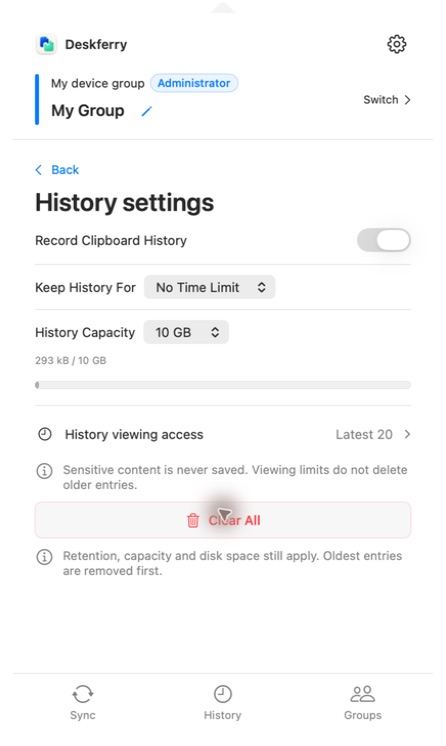
Browsing, full access and retention answer different questions
Every plan can browse and search summaries and thumbnails of every record still retained on this Mac, and search looks at saved text, contact fields, file names and folder names. Free is where full view and copy stop, at the global latest 20. That ranking is global across all types and is worked out before any search or type filter runs, and placeholders for sensitive or unsaved items take up positions in it. Which is why turning up an older item in a search never promotes it into the free window.
Pro and Max remove the count limit for records that are still retained. Downgrading later does not delete anything: those entries stay in the list and stay searchable in summary form, under the same retention and cleanup rules as before. And a group administrator's sync entitlement is no substitute for your own plan, because it does not unlock a member's personal full history access.
Tune it to how far back you actually look
For same-day addresses and snippets, match the period to your real habit rather than to the largest number on offer. If you reuse pictures and files, capacity and free disk space matter far more than the calendar. Either way, project assets belong in project folders or a backup. History is a convenience layer, not an archive.
- Open History settings and decide first whether you want recording on at all.
- Set Keep History For and History Capacity, then read the usage indicator to see where you actually stand.
- Come back after a week of ordinary work and check whether the entries you expected to find are still there. Do not infer retention from a plan name.
A sensible starting point: work out how far back you genuinely reach, set the time limit and capacity around that, and keep irreplaceable assets in their own folders. Before lowering capacity, rescue anything you cannot obtain again — the cleanup that follows can remove older content, and raising the limit afterwards will not bring it back. Check the list after any change rather than assuming a paid plan preserves everything.
Know the scope before you clear anything
Clear All is wider than it looks. It removes every retained local record — including entries currently hidden by your search or type filter, and older ones whose full access is restricted — and there is no undo. The cleanup guide walks through the difference between wiping stored history and simply replacing whatever is on the clipboard right now.
FAQ
Questions, answered
Does buying Pro or Max bring back content that cleanup removed?
No. Pro and Max unlock full viewing and copying of records that are still retained. Anything time, capacity or a manual clear has already removed is gone, and those rules keep running after you upgrade.
Is No Time Limit the same as keeping everything forever?
No. It switches off expiry by date and nothing else. Capacity, disk-space protection and manual cleanup all still apply, so anything you genuinely need belongs in a document or a backup.
Does opening an old entry in search protect it from cleanup?
No. Search finds what is retained. It is not a pin, a favourite or a backup. If an entry matters, save an independent copy of it somewhere else.
What should I do before lowering the capacity?
Move anything you still need into a lasting destination first. A smaller capacity can trigger removal of older items straight away, and raising the number again afterwards does not recover them.
Does my group administrator control how much history I can open?
No. The administrator's plan covers group sync rights, not your personal access to older records. Every plan browses and searches retained summaries, while your own plan decides full viewing and copying beyond the global latest 20.
Guides
Your next useful read
Clipboard history on this Mac: find an earlier copy
Copying the next thing should not cost you the last one.
Read the guideLocal clipboard historyClear clipboard history on Mac, and the copy that is on it now
Clearing one list never clears the other, and neither reaches what you already pasted.
Read the guideLocal clipboard historyClipboard history for images and files: pull an asset back out
Getting the right picture back into a project, not just an earlier sentence.
Read the guideDeskferry
Keep the next step simple.
Continue on another Mac, hand off a file, or find an earlier copy.
macOS 14+ · One Mac for history · Reachable LAN for sync
