
Deskferry official
Mac clipboard sync for the two Macs you switch between
The address is on the laptop. The field waiting for it is open on the desktop. That gap is the whole problem.
Choose something to send.
Interactive illustration · not an app screenshot
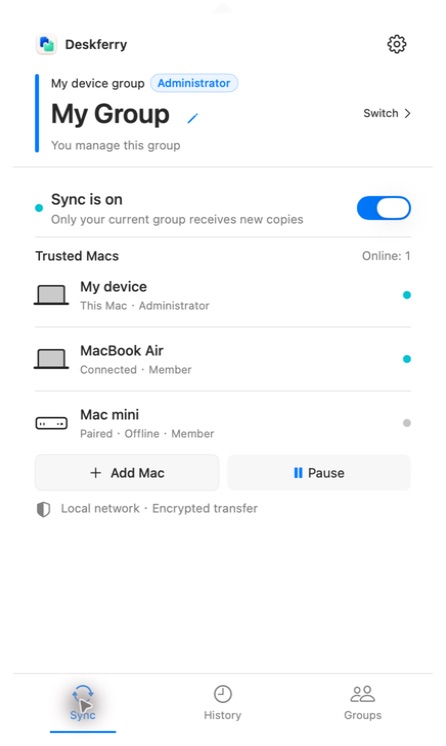
You read on the MacBook and you type on the desktop Mac, and every few minutes something has to get across: a paragraph, a web address, a screenshot someone sent you. Deskferry is a menu-bar app for macOS that moves those copies between Macs you have put in your own trusted group, over the local network.
Carry the next small thing across
Tomorrow's meeting address is open on your MacBook. The calendar entry is open on the desktop Mac, waiting for it. Select the address, Command-C, click into the location field on the other machine, Command-V. No window to open, no recipient to choose, nothing to confirm.
Links and images travel the same way, as long as whatever you paste into will take them. Each new copy goes to the Macs in your current group — which is how a work group and a home group stay separate. Whichever group is selected is the one that sees what you just copied.
Set up Mac clipboard sync once, then prove it with a real copy
Both Macs need macOS 14 or later, and a local network where they can actually reach each other. One can be on Wi-Fi and the other on Ethernet — what matters is the path between them, not matching icons in the menu bar. Install Deskferry on both and have it open on both before you start.
- On the administrator Mac, open your group and choose
Add Mac. On the second Mac, chooseJoin a Group, pick the nearby invitation and type the six-digit code, then go back to the administrator to review and approve the device. The code lasts 120 seconds and allows three attempts, which is less time than it sounds like when you are walking between rooms. If you still need to create the group, or the code ran out, the first-time setup steps cover both. - Select the same group on both Macs, check that sync is on, and wait until the other Mac shows as connected.
- Copy one ordinary sentence on the first Mac. Paste it into an empty document on the second.
- Once plain text arrives, try a link or an image from real work. One habit worth forming: after you start the app, reconnect, or resume sync, make a fresh copy. Do not sit waiting for the previous one to replay.
Three kinds of content that travel well
Text covers addresses, quotations, the short message you need to answer. A link lets you pick a page up where you left it. Images land in any document or editor that accepts a pasted picture. The text and link guide and the image guide work through examples of each.
When what you selected is an actual file in Finder, that is a different job — see the file handoff workflow. You copy in one Finder window, paste into a folder you choose on the other Mac, and open the file there to be sure it arrived. Files and videos draw on the administrator's Pro or Max entitlement, and folders need Max.
Worth doing once, on the first day: try a handoff in each direction. Copy the meeting address on the laptop and paste it on the desktop, then copy a reply on the desktop and paste it back. Read what actually arrived both times. If only one direction works, compare the current group, the sync switch and the connection status on both Macs before you change anything else.
Decide what is allowed to leave each Mac
Both ends choose what they allow, in the sync and privacy settings. Text, links and images are covered on every plan. Files and videos need Pro or Max on the group administrator, and folders need Max. One thing to be clear about: a group's sync entitlement does not extend a member's own history access.
Sensitive content has its own switch. Format detection will not recognise every password, key or private note — no detector does — so treat it as a filter and not as the decision about what belongs on another machine. When the next few copies should stay where they are, pause sync.
Today's handoff, next week's search
Sync answers one question. How do I paste this on my other Mac? Deskferry's local history answers a different one — where did the thing I copied on Tuesday go — and the two barely overlap. History is kept separately on each Mac. It works on a single machine, with no pairing at all.
Deskferry is published on the Mac App Store, not handed out here as a direct download, so start from the download page when you install it on both Macs.
FAQ
Questions, answered
Do both Macs need the same Apple Account?
No. Sync is built on trusted device groups, not on a shared Apple Account, which is the whole point for anyone with a managed work Mac. The Macs do still need macOS 14 or later, a local network where they can reach each other, and membership of the same group.
Where does the second Mac enter the pairing code?
On that Mac: choose Join a Group, pick the nearby invitation, and type the administrator's six-digit code. The administrator then approves the device before it joins. The complete two-Mac setup covers creating the group in the first place, and what to do when a code expires on you.
Will a Mac that was offline get my earlier clipboard when it comes back?
Do not count on a replay. Get both Macs into the same current group, wait for the connection, then copy the content again and check the paste at the destination. If the original has already left the clipboard, local history on the source Mac may still be holding something you can copy a second time.
Does switching groups push my current clipboard into the new one?
No — switching clears the current clipboard. Your memberships and your local history are left alone. Select the group you mean to use, wait for the connection, then copy the thing you actually want to share.
Can I use local history without turning sync on?
Yes. Recording, browsing and searching all happen on one Mac and need no second device at all. Pairing only matters for the cross-Mac handoff, never for local recall.
Guides
Your next useful read
Transfer files between Macs without leaving Finder
Copy at the source. Paste at the destination. Open the file and get back to work.
Read the guideLocal clipboard historyClipboard history on this Mac: find an earlier copy
Copying the next thing should not cost you the last one.
Read the guideCopy between MacsCopy and paste between Macs, one working handoff at a time
Five conditions have to line up before this works at all. Most people have four of them right.
Read the guideCopy between MacsLAN clipboard: get the two Macs reaching each other first
Both Macs have internet. That tells you nothing about whether they can see each other.
Read the guideDeskferry
Keep the next step simple.
Continue on another Mac, hand off a file, or find an earlier copy.
macOS 14+ · One Mac for history · Reachable LAN for sync
