
How it works
Set up Deskferry, one Mac at a time.
Get one Mac working first. The second Mac is a separate exercise, and it is optional.
Start on one Mac: copy twice, then get the first one back
Nothing in this first part needs a second Mac or any pairing at all. Install Deskferry, open it from the menu bar, and confirm Record Clipboard History is switched on in History settings. Then walk two harmless sentences through it, so you can see for yourself what gets recorded and how you get it back.
- In any document on this Mac, copy the line "Meeting on Friday". Then copy a second, different line — "Bring the draft" will do.
- Open History in Deskferry and type Friday into
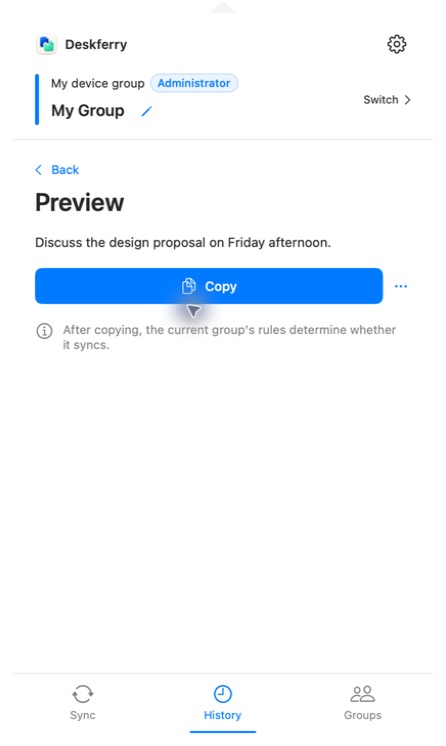
Search all history. You can also select the All tab and spot the first line by its summary. - Open that entry and choose
Copy. Paste into a writable document on the same Mac and check the whole line "Meeting on Friday" comes back. - While you are in History settings, look over recording, retention and capacity. Every plan can browse and search all retained records on this Mac; on Free, full viewing and copying cover the global latest 20.
Add a second Mac: invite, enter the code, approve
Follow this part only when you want copies to cross between Macs. Install Deskferry on both, make sure each runs macOS 14 or later and stays awake, and put them on a Wi-Fi or Ethernet network each can reach. Allow local network access when macOS asks — it will only ask once, and dismissing it costs you the next ten minutes.
- On the Mac that will administer the group, create a group first if you do not have one. Select it, then choose
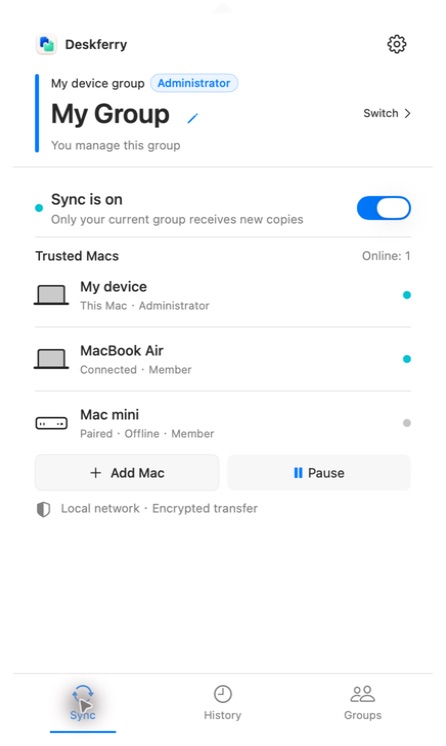
Add Macto generate a six-digit code. - On the second Mac, choose
Join a Group, pick the matching nearby invitation, enter the six-digit code and pair. - The code is good for 120 seconds and allows three authentication attempts. If it expires or the attempts run out, have the administrator generate a fresh code and use that new invitation.
- Back on the administrator Mac, confirm the device asking to join is the one you meant, then approve it.
- Select the same group on both Macs, enable sync, and wait until each one lists the other as connected. Belonging to a group is not the same as being connected to it.
Confirm the first copy, then try a file
With both Macs connected and text sync on, copy a fresh and distinctive line on the first Mac, then paste it into a document on the second. Compare the whole line, not just the opening words. If nothing arrives, work through LAN troubleshooting. The one-Mac exercise above already stands on its own, so treat this as an extra check and not a prerequisite.
For a file, check the group's file entitlement and the content switches first, then copy the file in Finder. The Sync page reports Sending and Receiving with byte progress, and asks the receiving Mac to verify when that is needed. Progress disappearing is not proof of success: apply the received item, paste into the destination Finder folder, and open the actual file. If authorization is refused or the transfer fails, see the file handoff guide.
Know who will receive the next copy
Only one group is current at any moment. Switching groups clears the current clipboard and changes who receives whatever you copy next, while your memberships and your local history stay exactly where they are. A normal reconnect or resume does not replay earlier copies, so make a fresh copy once the connection is ready.
FAQ
Questions, answered
Does the administrator have to stay online?
Not continuously. Once members are paired they connect to each other directly, so syncing carries on within the group's entitlements while the administrator is offline or working in a different group. What the administrator is needed for is approving a new Mac, and holding the Pro or Max plan that files and videos depend on.
Guides
Your next useful read
Mac clipboard sync for the two Macs you switch between
The address is on the laptop. The field waiting for it is open on the desktop. That gap is the whole problem.
Read the guideTransfer filesTransfer files between Macs without leaving Finder
Copy at the source. Paste at the destination. Open the file and get back to work.
Read the guideLocal clipboard historyClipboard history on this Mac: find an earlier copy
Copying the next thing should not cost you the last one.
Read the guideDeskferry
Keep the next step simple.
Continue on another Mac, hand off a file, or find an earlier copy.
macOS 14+ · One Mac for history · Reachable LAN for sync
