
Deskferry editorial guide
How to recover copied text on Mac after a new copy replaces it
Work through the places that might actually hold it. There is a point where it is fair to stop.
You copied a URL, and the paragraph that was on the clipboard a second earlier went with it. Pressing Paste again will not bring it back — the system clipboard holds one item and the new copy has taken the slot.
Recovery depends on something else having kept a copy, or on the original text still being somewhere you can reach. Below is the order worth trying, and the point at which it is fair to stop looking.
How to recover copied text on Mac when history was already running
On macOS Tahoe 26 or later, open Spotlight with Command-Space, switch to Clipboard with Command-4 and search for a word or two you are sure about. Select the match, press Command-C, then paste it where you need it. This only helps if clipboard history was enabled before you made the copy — enabling it now records from now on.
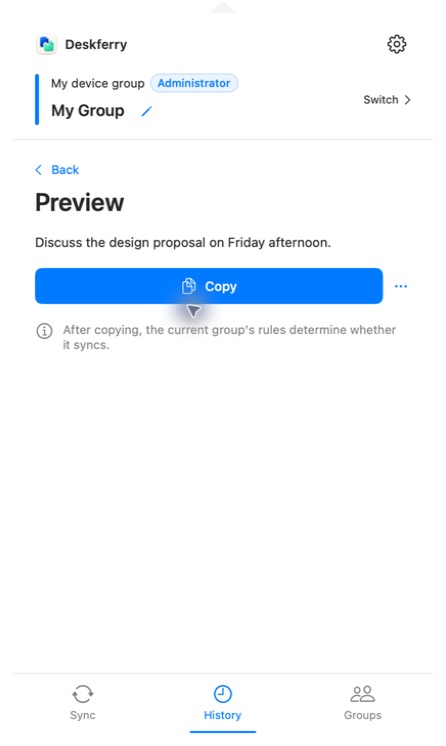
If Deskferry was already recording, open History from the menu bar and type one distinctive word from the passage into Search all history. Stay on All at first, because an address or a phone number may be filed under Contact Info rather than Text. Search covers saved text, contact fields, file names and folder names, and it looks only at this Mac. Read the summary to confirm you have the right entry, then open it and copy it where full access applies.
Search for a single memorable word rather than the whole missing paragraph, since a long string rarely matches what was stored. If nothing comes back, clear any type filter before you conclude anything. Check the wording in the preview before you copy, and paste into a scratch document first so the recovered text does not overwrite what you are working on. A matching summary tells you the entry exists. It does not promise the full body is available to you.
A match you cannot copy is not always a reason to pay
Finding the passage and being able to lift the whole thing out are separate questions. Every Deskferry plan searches all retained records on the Mac. Free opens and copies the global latest 20, ranked across all types before your search or filter is applied, so an older match shows a fixed summary and its Copy button opens an upgrade prompt rather than writing to the clipboard. Pro or Max unlocks the full text — but only while that record is still retained.
This is the honest limit of any history tool, and it is worth saying plainly before you spend money. Installing one today builds a record from today. It cannot read a clipboard that was overwritten last week when nothing was keeping a copy. A search also cannot restore a body that was deleted, never recorded, or held back as a sensitive placeholder, and upgrading a plan does not change any of that.
Go back to where the text came from
Often the original is still within reach, and this is the check that succeeds most often. If the page is open, select the passage again. If you closed it, look through browser history for the title or the domain. For mail, chat and documents, search inside the app itself using a remembered phrase and a rough time — those apps find text faster than you can rewrite it from memory.
If what you lost was an edit inside a document rather than a copy, that is a different repair entirely. Try the app's Undo, its autosave or its version history. Those restore changes to a file and hold nothing about what passed through the clipboard.
Leave yourself a way back next time
Where this keeps happening, the fix is to have something recording before the fact. Deskferry does that locally on macOS 14 or later, with search across saved text, contact fields, file names and folder names, previews by type, retention settings you control, and optional LAN sync between your own Macs. A half-remembered phrase is then enough to find a retained copy without reopening every tab from that afternoon. It still records only from the moment you switch it on, and only on the Mac where you copied.
After setting up history, test it with two harmless passages: copy both, then try to recopy the first one. And anything you will still want in a month belongs in a note or a document, because clipboard history is temporary by design and capacity or expiry settings will eventually clear it.
Official references
Apple feature references checked 16 September 2026. Deskferry is independent of Apple.
FAQ
Questions, answered
Does pressing Command-V twice cycle back through earlier copies?
No. Paste returns the current clipboard however many times you press it. To reuse an earlier item you have to recopy it from a history list, or find it again in its original source.
Can I recover text copied before recording was switched on?
Not from that history, which has no record of it. Check the original document, page or message, or another history that was already active at the time. Installing Deskferry, or upgrading a plan, does not reconstruct it.
Why does a result I can see ask me to upgrade?
Deskferry Free searches every retained summary, while full viewing and copying cover the global latest 20 records. Because the ranking is applied before your search, a match cannot move an older entry into that window.
What if I cannot remember any of the wording?
Clear the search and browse by time and type on the Mac where you copied it. If it is still not there, no record exists and the original source is your only route. Search will not recover deleted bodies or sensitive placeholders.
Guides
Your next useful read
Clipboard history on this Mac: find an earlier copy
Copying the next thing should not cost you the last one.
Read the guideLocal clipboard historyHow to see clipboard history on Mac and copy an item again
Whether yesterday's copy still exists was decided yesterday, not now.
Read the guideLocal clipboard historyClipboard history retention: decide what this Mac keeps
Storage rules decide what survives. Access rules decide what you can open. Two different things.
Read the guideDeskferry
Keep the next step simple.
Continue on another Mac, hand off a file, or find an earlier copy.
macOS 14+ · One Mac for history · Reachable LAN for sync
