
Deskferry editorial guide
How to see clipboard history on Mac and copy an item again
Whether yesterday's copy still exists was decided yesterday, not now.
You copied a link, and the paragraph you meant to paste went with it. That is the system clipboard working as designed: one item at a time, so Paste always returns the newest copy and nothing older.
What macOS keeps beyond that depends on the version. On macOS Tahoe 26 or later, Spotlight can keep a browsable list of earlier copies once you enable it. On Sonoma 14 or Sequoia 15 there is no such list at all, which leaves you with a history app that was already recording, or a trip back to the original document.
macOS Tahoe 26 and later: open the clipboard in Spotlight
Confirm the version first — Apple menu, then About This Mac. Tahoe 26 and later include the clipboard history described below; Sonoma 14 and Sequoia 15 do not. One thing worth knowing about the older versions, because it is easy to mistake for history: Finder's Edit menu can show you the clipboard, but that is the single current item, not a list you can scroll back through.
- Press
Command-Spaceto open Spotlight. - Click the clipboard button beside the search field, or press
Command-4once Spotlight is open. - The first time, choose Enable when you are prompted. Then scroll the list, or type a word you remember to narrow it down.
- Select the entry you want and press
Command-C, then switch to the app you are writing in and pressCommand-V.
macOS 14 and later: how to see clipboard history on Mac with a recording app
A third-party history app is the practical answer on Sonoma 14 and Sequoia 15, and it is also what you want if you prefer to sort copies by type. Deskferry runs from the menu bar on macOS 14 or later. Install it, open History settings and confirm recording is on, then copy a few ordinary items so there is something in the list to work with.
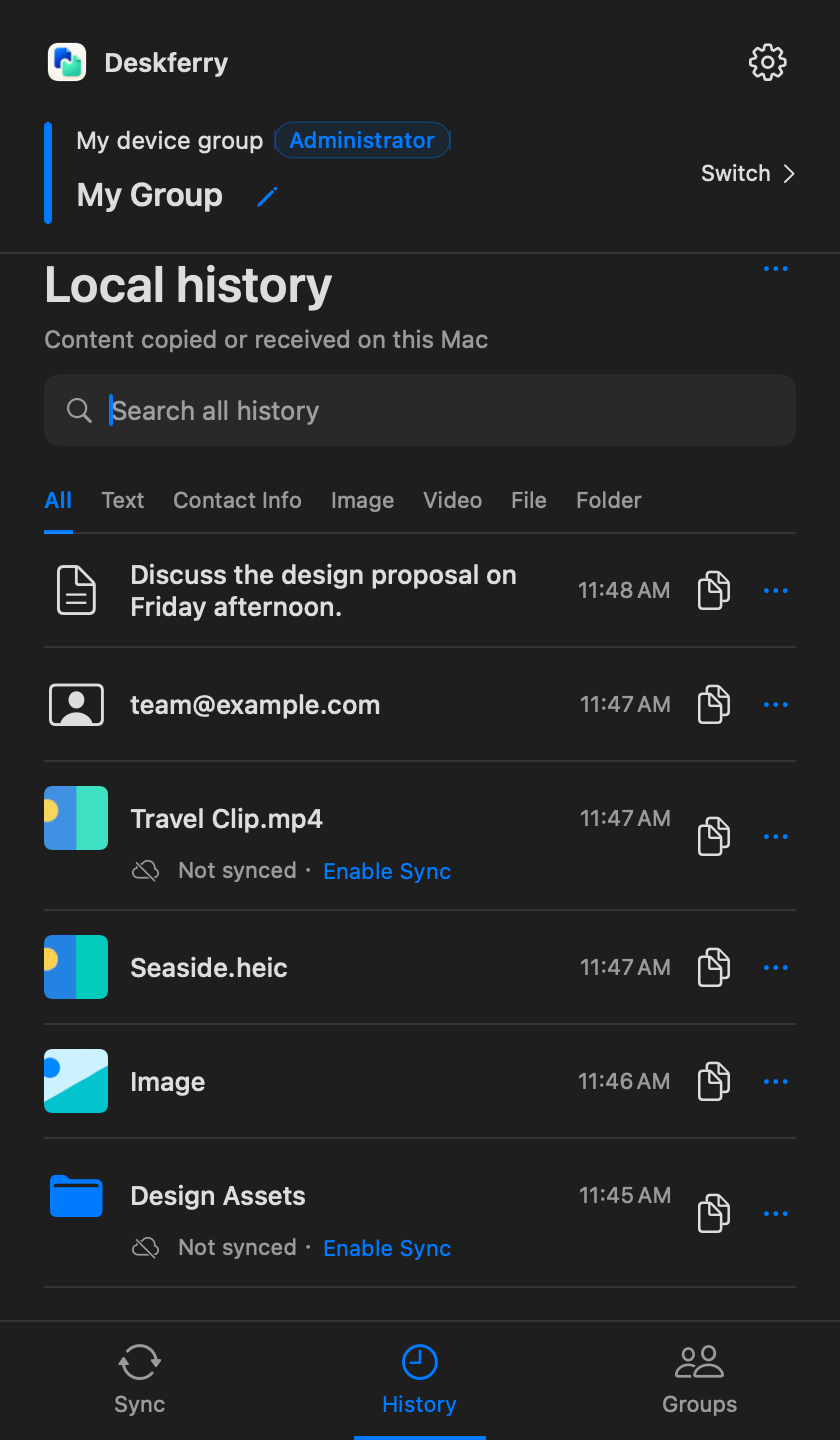
In History, type a phrase, a contact detail, a file name or a folder name into Search all history, or stay on All and move across the type tabs. Every plan browses and searches all records still retained on that Mac. Recognise the entry from its summary or thumbnail, open it, choose Copy where full access applies, and paste into your destination app as usual.
Try the routine once with material you do not mind losing. Copy 'First note', then copy 'Second note'. Open History, search for 'First', select the result and check the preview, then choose Copy and paste it into an empty document. Both copies are recent, which keeps this test about recording and recall rather than about older-entry limits. If nothing comes back, confirm recording was already on when you copied, and clear any type filter still applied.
Finding an entry is not the same as unlocking it
Two things have to be true before anything shows up at all: the item was recorded at the time, and it is still retained. Capacity limits, an expiry setting or a manual clear can remove an older entry, and content that is clearly sensitive is not kept as readable history.
On Deskferry Free, the global latest 20 records can be opened in full and copied. That ranking runs across all types before your search or type filter is applied — which means searching cannot pull an older record into the window, however precise your search term is. Older matches stay visible as a fixed summary or a restricted image preview, and their Copy button remains on screen but prompts you to upgrade instead of writing to the clipboard. Pro and Max open every retained record. If a picture seems to be missing, clear the search and the type filter, then check that recording was on and that the entry has not aged out. See history settings.
When nothing recorded it, go back to the source
If the entry is simply not there, work backwards in this order: a filter hiding it, recording switched off at the time, then a cleanup or capacity limit that removed it. Once those are ruled out, nothing saved that copy, and the quickest route is the original itself. Reopen the page, document or message and copy it again. A history tool installed today records from today — it cannot reconstruct what passed through the clipboard yesterday.
Official references
Apple feature references checked 16 September 2026. Deskferry is independent of Apple.
FAQ
Questions, answered
Do I need both Spotlight history and a separate app?
Often not. Start with whatever your macOS version already offers. Add Deskferry when you want type previews for images and files, retention settings you control, or its LAN workflow. If you run both, each keeps its own list and its own cleanup settings, so you manage them separately.
Where do I check which macOS version this Mac runs?
Apple menu, then About This Mac. On Tahoe 26 or later, use clipboard history in Spotlight. On Sonoma 14 or Sequoia 15, use a history app such as Deskferry, with recording enabled before the copy you care about.
Why can I see an older result but not copy all of it?
Browsing and searching summaries work on every Deskferry plan. Full viewing and copying beyond the global latest 20 need your own Pro or Max plan. History access explained.
Does this list include what I copied on my other Mac?
No. Deskferry history belongs to the Mac that recorded it, and there is no remote browsing of another Mac's history. Content that arrived here and was recorded here can appear in this list.
Does filtering by Image give me a fresh set of free entries?
No. Type filters and searches change what you see, not the global ranking that decides which 20 records are fully available. Older images stay findable without becoming unlocked.
Guides
Your next useful read
Clipboard history on this Mac: find an earlier copy
Copying the next thing should not cost you the last one.
Read the guideLocal clipboard historyHow to recover copied text on Mac after a new copy replaces it
Work through the places that might actually hold it. There is a point where it is fair to stop.
Read the guideLocal clipboard historyClipboard history for images and files: pull an asset back out
Getting the right picture back into a project, not just an earlier sentence.
Read the guideDeskferry
Keep the next step simple.
Continue on another Mac, hand off a file, or find an earlier copy.
macOS 14+ · One Mac for history · Reachable LAN for sync
