

Different Apple Accounts.
Still connected.
Work Mac on one account, personal Mac on another. Deskferry connects them through a group of Macs you approve.
 DeskferrymacOS
Mac-to-Mac clipboard sync
Text, links, images, files, entire folders.
Stop sending them to yourself. Just copy and paste.
Two Macs on your local network. No Deskferry account.
Copied on one Mac. Pasted on the other.
Illustrated workflow · paired Macs on a reachable local network. Transfer time varies with your files and network.
Paired Macs · Same local network
Hi team,
I’ll share the next steps soon.
DeskferryClipboard syncedContinue your draft, right where you left off.
Workflow illustration · transfer time varies.
Paired Macs · Same local network
DeskferryTransfer completeIn the right folder. Ready to use.
Workflow illustration · transfer time varies.
Paired Macs · Same local network
DeskferryTransfer completeIn the right folder. Ready to use.
Workflow illustration · transfer time varies.
A note on your MacBook. Ready for the draft on your desktop.
Illustrated clipboard examples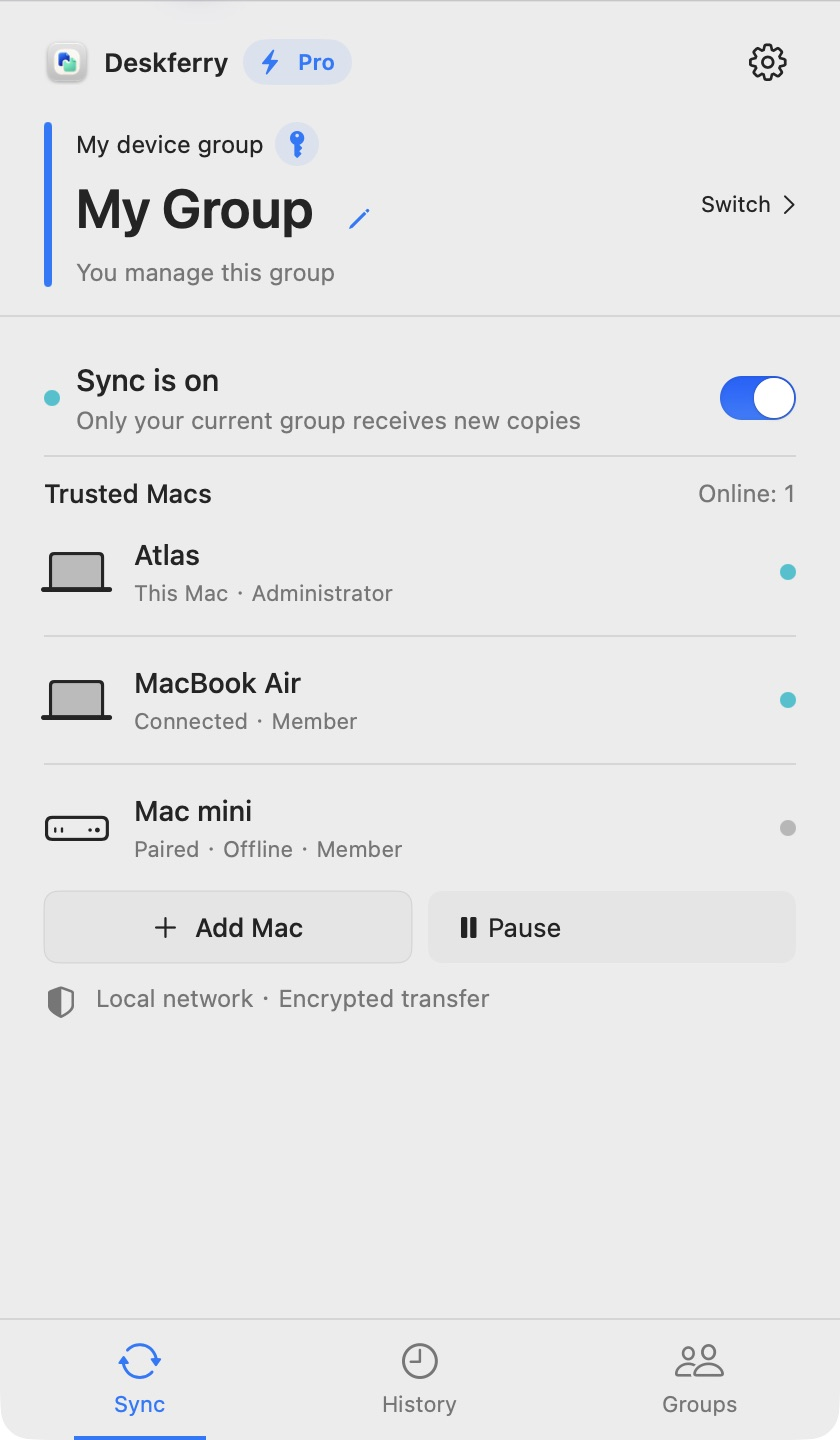
Built for your MacBook + desktop. Or any two Macs you work between.
Get them connectedWork Mac on one account, personal Mac on another. Deskferry connects them through a group of Macs you approve.
Your content travels directly over your local network. No developer cloud storage or relay. No Deskferry sign-in.
Open Deskferry on each Mac, with macOS 14+ and a local network they can both reach.
Choose Add Mac on the first. Choose Join a Group on the other, enter the code, and approve the connection.
Choose the same group, turn sync on and make a fresh copy. For files and folders, wait for “Received. Ready to paste.”, then press Command-V in the destination Finder folder.
Both need Deskferry, macOS 14 or later, and a local network where they can reach each other. Wi-Fi and Ethernet can work together. Choose the same trusted group and enable the content types you want to sync. Your other Mac should show as connected before you make a new copy. For Macs on different reachable private subnets, use the IP or hostname option in Add Mac and Join Device Group. Both ends must support this option; the invitation code and approval still apply.
Select the item in Finder and press Command-C. If Deskferry asks for access, approve the selected item through the app prompt. History shows receiving status, byte progress and verification for incoming files and folders. Unfinished content stays protected. Once reception, verification and the clipboard update finish, a quiet notice says “Received. Ready to paste.” without taking focus from your work. After “Received. Ready to paste.” appears, open a writable destination folder in Finder and press `Command-V` yourself. Finish by opening the actual file. The notice confirms that the clipboard is ready; it does not paste into Finder for you. The group administrator needs Pro or Max for files and videos, and Max for folders. Each member’s personal history access remains separate from the group’s transfer rights.
Each transfer creates an independent copy, including the folder structure. It does not continuously mirror later changes. Copy the folder again when you want to send a newer version.
Yes. Choose which content types sync in your current group, and pause sync when you need to. New copies go to connected Macs in that group. Other groups do not receive them.
Optional Google Analytics helps us understand page use and App Store link clicks. It cannot read your clipboard or Deskferry history. Privacy